Image File Conversion & Compression — The Complete Guide (2026)
Every format you'll actually meet, how to convert between them, and how to shrink files without visible quality loss.
Almost every image problem you'll ever hit comes down to one of two things: the file is in the wrong format for what you're doing, or it's the right format but the file is too big. Your iPhone hands you a HEIC that a web form rejects. A designer sends a 40 MB PNG that should have been a 400 KB JPG. A site serves you a WebP your old editor can't open.
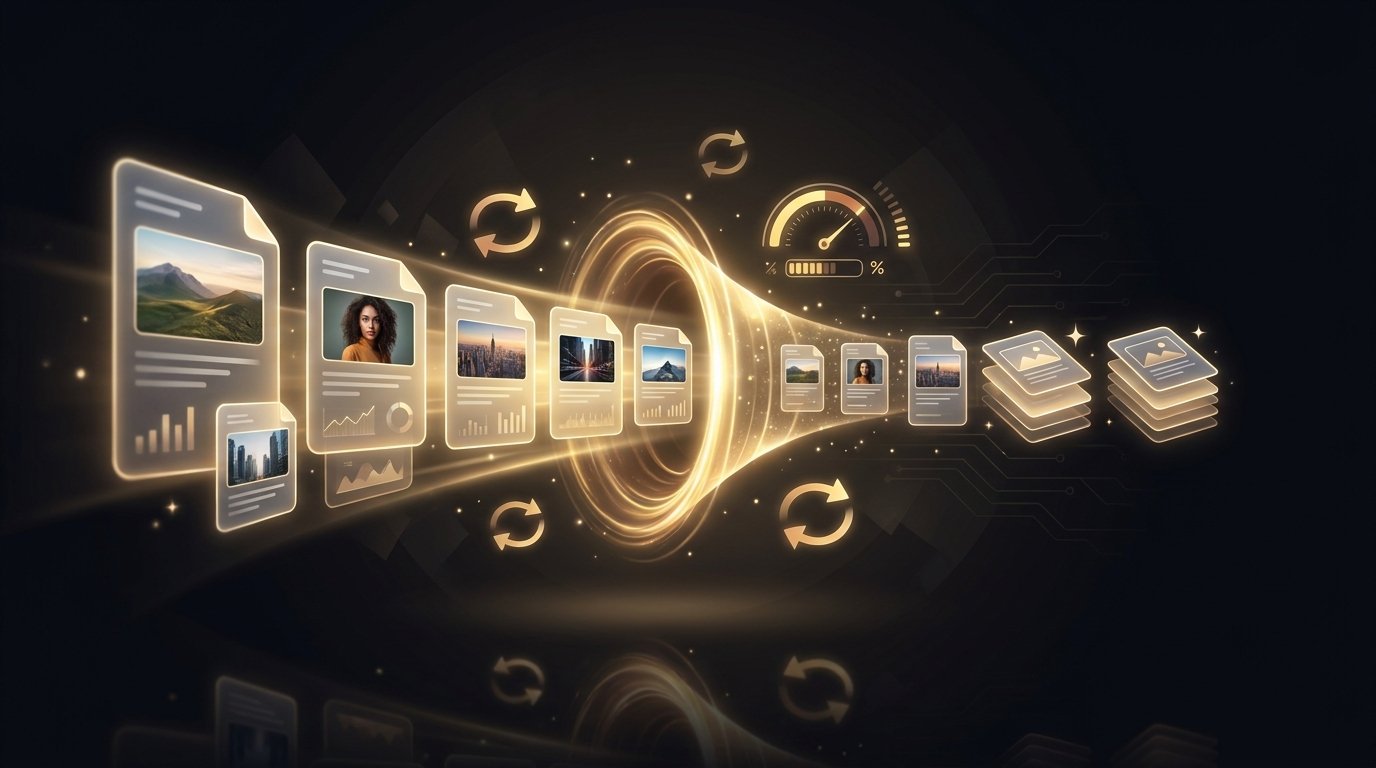
This guide covers the whole pipeline — what the common formats are for, how to convert between them (including the awkward ones: RAW, HEIC, documents), and how to compress the result so it loads fast without looking worse.
First, a 60-second format refresher
JPG is for photographs — small files, no transparency. PNG is for graphics, screenshots and anything needing transparency — lossless but heavy on photos. WebP and AVIF are the modern web formats: 25–50% smaller than JPG at the same visual quality, now supported by every current browser. HEIC is what iPhones shoot by default — great compression, poor compatibility outside Apple. For the full comparison with file-size benchmarks, see our image format cheat sheet; for the long tail (TIFF, BMP, EPS, PSD and 40+ others) jpg.now keeps a full list of supported formats with a converter for each.
Part 1 — Converting between formats
Phone photos: HEIC → JPG
The single most common conversion in 2026. iPhones shoot HEIC by default, and half the web still won't accept it. Drop the file into our free HEIC to JPG converter and you get a universally compatible JPG in seconds — no app install, works on the phone itself. (Tip: you can also set the iPhone camera to "Most Compatible" in Settings → Camera → Formats to shoot JPG directly, at the cost of ~2× larger files.)
Web formats: WebP and AVIF, both directions
Right-click-saving an image from a modern site usually gets you a WebP or AVIF. If your editor or upload form doesn't take them, convert with WebP to JPG (or AVIF to JPG — same idea, newer format). Going the other way is a compression win: publishing your JPGs as AVIF cuts file size roughly in half, and jpg.now has a free JPG to AVIF converter for exactly that. If you're not sure what AVIF even is, their AVIF explainer is a good five-minute read.
PNG ↔ JPG
Two rules cover 95% of cases. Photograph saved as PNG? Convert it — PNG to JPG typically shrinks it 5–10× with no visible difference. Graphic, logo, or screenshot with text saved as JPG? Go the other way with JPG to PNG to stop the compression artifacts around sharp edges. Remember JPG has no transparency — converting a transparent PNG to JPG fills the background white.
Camera RAW files
RAW formats (CR3, NEF, ARW, DNG and a dozen more) hold unprocessed sensor data — wonderful in Lightroom, useless to share. We don't host RAW converters, but jpg.now covers the whole family: their RAW to JPG converter handles the generic case, with dedicated pages per camera brand if you need them. If you shoot RAW and want your photos on your lock screen, our DSLR-to-wallpaper workflow walks the full edit → convert → resize chain.
Documents and PDFs
Images and documents cross over more than you'd think. To bundle photos or scans into a single shareable file, use our image to PDF converter. For the reverse — turning a Word file, slide deck, or spreadsheet into an image you can post anywhere — jpg.now converts documents directly: DOCX to JPG and the same for PPT, XLS and 20+ office formats. Their guide to multi-page JPG-to-PDF conversion covers the fiddly multi-page case well.
Part 2 — Compressing without wrecking quality
Lossy vs lossless, in one paragraph
Lossless compression (PNG, WebP-lossless) repackages the exact same pixels into fewer bytes — nothing is ever lost, but savings are modest. Lossy compression (JPG, WebP, AVIF) throws away detail your eye barely registers — savings are dramatic, and quality is a dial you control. The whole game is finding the lowest setting that still looks perfect at the size people actually see the image.
JPG: the quality dial
JPG quality runs 1–100, but the scale isn't linear: 100→85 halves the file with almost no visible change, while 85→60 saves less and starts to smear fine texture. For photos, 80–85 is the sweet spot; go 90+ only for print masters. Run your files through our JPG compressor and compare — our complete compression guide has per-use-case settings, and jpg.now's quality-scale walkthrough shows side-by-side crops of every step on the dial.
PNG: fewer colors, smaller files
PNG compression is lossless, so the big wins come from reducing what's in the file: quantizing to 256 colors can shrink a UI screenshot 70% with no visible change. Our PNG compressor does this automatically and shows you the before/after so you can judge.
The biggest single win: change the format
Past a point, squeezing a JPG harder just makes it ugly. Converting it to a modern format is the better trade — convert to WebP and you'll typically land 30% smaller than an equivalent-quality JPG (AVIF, above, pushes further still). Every current browser renders both.
How small should the file actually be?
Rules of thumb: web hero images under 300 KB, content images under 150 KB, thumbnails under 30 KB, a full-res phone wallpaper 500 KB–1 MB. Our file-size reference has targets for every use case, and jpg.now's file-size calculator predicts the output size from dimensions, format and quality before you convert anything.
Screen vs print: the DPI trap
Screens don't care about DPI — a 1080×1920 wallpaper is 1080×1920 pixels whatever the metadata says. Print does: 300 DPI is the standard, so an A4 print wants roughly 2480×3508 pixels. Before sending anything to a printer, sanity-check it with jpg.now's DPI converter — and if the source is too small, our AI upscaler can add real resolution rather than just stretching pixels.
Batch work: don't do it one file at a time
Migrating a folder of images? Our batch optimizer compresses a whole set in one pass, and batch resize normalizes dimensions at the same time. For odd formats in the pile, jpg.now's universal image converter takes practically anything as input — including formats most tools have never heard of.
The 10-second decision guide
- Photo for the web → JPG at quality 80–85, or WebP/AVIF if you control the site.
- Logo, screenshot, transparency → PNG (compressed), or SVG if it's vector.
- iPhone photo to share anywhere → HEIC to JPG.
- Saved a WebP/AVIF you can't open → convert to JPG or PNG.
- Camera RAW → edit first, then RAW to JPG to share.
- Sending to print → check pixels against 300 DPI, upscale if short.
- Whole folder → batch optimize, don't hand-feed files.
Every wallpaper on the site already ships in the right format and resolution for your device — browse /wallpapers/ and the download button does the format thinking for you. For everything else, the tools above cover the pipeline end to end, free.