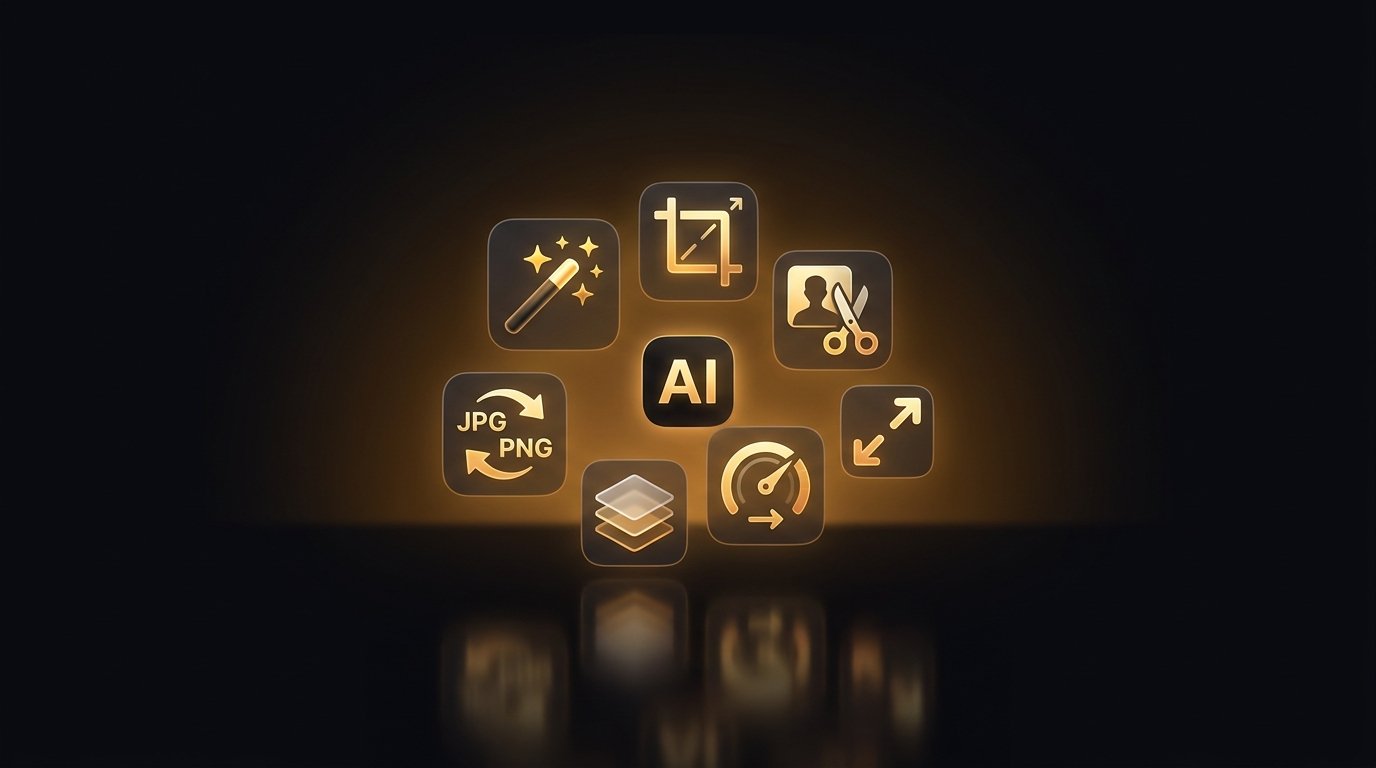
Most people land on Wallpapers.com for the wallpapers — but the site is also a full, free, browser-based image toolkit. There's nothing to install and no account required: you can remove a background, convert HEIC to JPG, resize for Instagram, compress a photo, upscale a tiny image, or generate something brand-new with AI, all in a few clicks.
Below are the 20 most popular tools, ranked roughly by how often people search for them, with a plain-English explanation of what each one does and the moment it's actually useful. Every tool is linked, so you can jump straight in.
1. AI Background Remover
What it does: Automatically detects the subject of a photo and erases everything behind it in one click, leaving a clean transparent PNG with crisp edges — even around hair and fur.
Use it when you need a product shot on white, a profile picture without a messy room behind you, or a cut-out subject to drop onto a new background or wallpaper.
Open the AI Background Remover →
2. Image to PDF Converter
What it does: Combines one or many JPG, PNG or HEIC images into a single, properly sized PDF document right in your browser — no app and no upload limits to wrestle with.
Use it when you're emailing scanned receipts, sending a portfolio, or turning phone photos of a document into one tidy file a recipient can open anywhere.
Open the Image to PDF Converter →
3. HEIC to JPG Converter
What it does: Converts Apple's HEIC photos into universally supported JPGs while keeping the original quality, so images that 'won't open' on Windows, Android or older apps just work.
Use it when you've AirDropped or downloaded iPhone photos and a website, printer or coworker can't read the .heic format.
Open the HEIC to JPG Converter →
4. Image Resizer
What it does: Resizes any image to exact pixel dimensions or a percentage, with optional aspect-ratio lock so nothing gets stretched or squashed.
Use it when an upload form demands a specific size, you need a smaller file for email, or you want every image in a set to match.
5. JPG to PNG Converter
What it does: Turns a JPG into a lossless PNG, the format of choice when you need transparency support or pixel-perfect edges for logos, icons and graphics.
Use it when you're layering an image in a design, need a transparent version, or want to stop quality loss from repeated JPG re-saves.
Open the JPG to PNG Converter →
6. PNG to JPG Converter
What it does: Flattens a PNG into a much smaller JPG, trading transparency for a fraction of the file size — ideal for photos that don't need a clear background.
Use it when a PNG is too heavy to upload or email, or a platform only accepts JPGs.
Open the PNG to JPG Converter →
7. AI Image Upscaler
What it does: Uses AI to enlarge an image 2× or 4× while reconstructing detail and sharpness, instead of the blurry mess you get from a normal stretch.
Use it when you've got a small, low-resolution image you want to print, use as a wallpaper, or display large without it looking pixelated.
8. JPG Compressor
What it does: Shrinks JPG file size dramatically with smart compression that keeps the image looking sharp to the eye.
Use it when you need pages to load faster, want to fit under an upload size cap, or are sending lots of photos at once.
9. PDF to Image Converter
What it does: Exports each page of a PDF as a high-quality JPG or PNG you can crop, edit, post or embed.
Use it when you want to grab one page as a picture, share a PDF on social media, or pull a figure out of a document.
Open the PDF to Image Converter →
10. AI Photo Enhancer
What it does: Automatically improves lighting, colour, contrast and sharpness, giving dull or blurry photos a clean, professional pop in one tap.
Use it when an old, dark or soft photo needs new life before you print it, post it or set it as a wallpaper.
11. Social Media Image Resizer
What it does: Crops and resizes an image to the exact, up-to-date dimensions each platform expects — Instagram posts and stories, YouTube thumbnails, Facebook covers, X headers and more.
Use it when you're posting the same image across channels and want it to look right everywhere without guessing pixel sizes.
Open the Social Media Image Resizer →
12. AI Background Generator
What it does: Creates a brand-new background from a text prompt and places your subject on it — studio scenes, gradients, landscapes or abstract art, no photoshoot required.
Use it when you've removed a background and need a better one, or want a custom backdrop for a product, portrait or banner.
Open the AI Background Generator →
13. AI Wallpaper Generator
What it does: Generates original, high-resolution wallpapers from a description — pick a style, type what you want, and get phone- or desktop-ready art that exists nowhere else.
Use it when you can't find the exact vibe you want in a gallery and would rather create a one-of-a-kind wallpaper.
Open the AI Wallpaper Generator →
14. Sky Replacement
What it does: Swaps a flat, blown-out or grey sky for a dramatic sunset, blue-hour, starry or cloudy one, blending the lighting so it looks natural.
Use it when a great landscape or real-estate shot is let down by a dull sky.
15. Live Wallpaper Maker
What it does: Turns a still image into an animated, parallax-style live wallpaper with a seamless loop, exporting an MP4 for Android and a Live Photo bundle for iPhone.
Use it when you want your lock screen to move when you tilt your phone, from any wallpaper you like.
Open the Live Wallpaper Maker →
16. Wallpaper Resizer
What it does: Resizes and crops any image to fit a specific phone, tablet or desktop screen perfectly, so your wallpaper isn't zoomed, cropped wrong or letterboxed.
Use it when a wallpaper looks off on your device and you want it to fill the screen edge to edge.
17. Aesthetic Wallpaper Generator
What it does: Creates wallpapers tuned to popular aesthetics — cottagecore, dark academia, Y2K, minimalist, cyberpunk and more — from a simple prompt.
Use it when you're decorating a phone around a specific mood or theme and want art that nails the look.
Open the Aesthetic Wallpaper Generator →
18. Photo to Wallpaper Maker
What it does: Transforms one of your own photos into a polished, wallpaper-ready piece — reframed, enhanced and styled for a phone or desktop screen.
Use it when you want a personal photo (a pet, a place, a person) to become a wallpaper that actually looks designed.
Open the Photo to Wallpaper Maker →
19. Change the Lighting in a Photo
What it does: Relights a photo with AI — add golden-hour warmth, dramatic shadows, soft studio light or a moody tone — without re-shooting.
Use it when the mood or time-of-day feel of an image is wrong and you want to fix the lighting after the fact.
Open the Change the Lighting in a Photo →
20. Wallpaper Preview on Wall
What it does: Shows how a wallpaper, art print or pattern will look on a real wall before you commit, so you can judge scale and colour in context.
Use it when you're choosing wall art or decor and want to see it in a room instead of guessing from a thumbnail.
Open the Wallpaper Preview on Wall →
Which tool should I use?
If you're skimming, here's the short version:
- Create with AI — AI Wallpaper Generator, AI Background Generator, Live Wallpaper Maker.
- Edit & enhance — Background Remover, Upscaler, Photo Enhancer, Sky Replacement.
- Resize for a platform — Image Resizer, Social Media Resizer, Wallpaper Resizer.
- Convert & compress — HEIC to JPG, JPG to PNG, PNG to JPG, Image to PDF, PDF to Image, JPG Compressor.
Free, private and browser-based
Every tool above runs in your browser, costs nothing to try, and doesn't require an account to get started. Browse the full set any time on the Wallpapers.com Tools page — and once your image is ready, it's only a step away from becoming your next wallpaper.